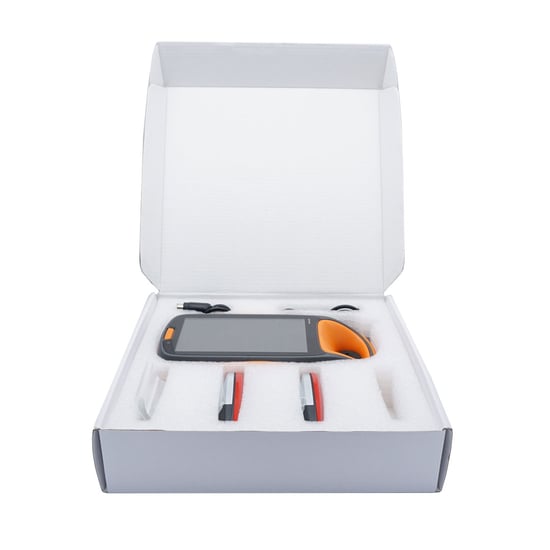
KYDZ Stone Smart Key Programmer Supports Remote Test Frequency Update Support To Create Chip Recognition - Smart Card Creation
KYDZ Stone Smart Key Programmer Description:
KYDZ Stone Smart Key Programmer Supports Remote Test Frequency Update Support To Create Chip Recognition - Smart Card Creation
KYDZ STONE Remote Generator – Key Maker – Chip Cloner device Android Handheld Supports Remote Test Frequency-Refresh Generate Chip Recognition-Smart Card Generate
KYDZ Stone Smart Key Programmer Functions:
- Chip Identification, Copy and Generation
- Anti-theft Data write Key
- Remote Generation
- Support Frequency Detection, Infrared Detection
- NXP Renew
- Smart Card Generation
Power On and Off:
1.Power on: press the battery button in 3 to 5 seconds, entering the Android screen, then click the “agree”.
2.Power off: press the battery button in 2 to 3 seconds,appearing the word “power off”, then click the “power off”.
Home Page Description:
- Active message showing: show the new message of KYDZ
- Remote making: producing the RKE remote key.
- Detecting the frequency and infrared.
- NXP renew: OEM and after market is supported.
- Chip identify:recognize the chip,edit,read the EEPROM.
- Copy:(still research and develop).
- Special function:(still research and develop).
- Smart card:producing all kinds of PKE remote keys.
- Making chip:G make,G mass,ID67,ID68,ID70,ID70E,ID33,ID40,ID4, ID42,ID43,ID44,ID45,ID46,ID60,ID61,ID62,ID63 and so on.
- Setting: wifi setting,display setting, volume setting, language setting, PC mode.
KYDZ Stone Smart Key Programmer Using Instruction:
1. Remote Making
Please check if the battery of the RKE remote key can work before making, then clicking the “remote make”—–choose the area—-choose the type of car—-enter the screen of remote make—-put the RKE remote key into the Key slot—-appear the word “connect the remote key”—-click generate—remote making—–read successful—-confirm.
2. Detecting Frequency
(1)Detecting Frequency: click “frequency”—–put the remote key near this machine—-press the button of the remote key—-appearing relative information of the key.
(2)Detecting Infrared:click “frequency”—–put the remote key near this machine—-press the button of the remote key—-appearing information.
3. NXP Renew
Click“NXP renew”—-choose the area—-choose the type of the car—–enter the screen and connect the circuit—–use the PS2 wire to connect the port of the PS2——–click “refresh/update”——-reading the chip——read successful—-click “confirm”
4. Chip Identity
(1)Click “chip identity”—–put the chip into the Key slot—-click chip identify—–recognizing—-finished—-showing the information of chip—click “chip edit”
(2)Click “chip identity”—–out the chip into the key slot——click “EEPROM”—-click “read the data of EEPROM”
5. Copy: (still research and develop).
6. Special function: (still research and develop).
7. Smart Card
Please check if the battery of the RKE remote key can work before making, then clicking the “remote make”—–choose the area—-choose the type of car—-enter the screen of remote make—read PKE remote key—adjust it until it display the “PKE remote key”—-click “generate”–confirm
8. Making Chip
(1)Car model:put the chip into the key slot—-click “make chip”—-car model—-choose the area—-choose the type of the car—-click “Importing files”—confirm—-back to the last interface—click “generate”–confirm
(2)Image generator:put the chip into the key slot—-click “make chip”—click “image generator”—choose G producing as your need.
(3)Unlock: put the chip into the key slot—–click “make chip”—–click “unlock”—-choose the area—-the the type of the car— detecting the battery—detecting the data of the factory—-reset the chip.
9. Setting
(1)WIFI setting: click “setting”—click “wifi setting”—-choose the internet——connect
(2)display setting:click “setting”—click “display setting”—-adjust the light of the screen as you want
(3) volume setting:click “setting”—click “volume setting”—-adjust the volume of the screen as you want
(4)language setting:click “setting”—English/Chinese
(5)PC mode:connect to the computer
(6)About: showing the version of this machine
KYDZ Stone Smart Key Programmer Parameter
1.Size: 5.0 inch
2.Battery: 5000mAh/3.7V
3.Charging: DC 5V/1A
4.Using environment: -10°C—55°C
KYDZ Stone Smart Key Programmer includes:
1 set x KYDZ Smart Key Programmer